

Elementor dragging its feet while you try to design your site? Slow editor speed often ties back to one hidden culprit: your WordPress memory limit. When memory runs low, every click feels like a wait. In this post, you’ll learn how to increase memory limit settings to boost Elementor speed and improve your WordPress performance—so editing feels smooth and your website optimization efforts pay off. Check out this guide on how to increase WordPress memory limit.
Understanding WordPress Memory Limit

WordPress memory is like your site’s fuel—it powers processes and handles tasks. Without enough, your site might stall, especially when using plugins like Elementor.
Importance of Memory Limit
Think of memory limit as your website’s capacity to handle tasks simultaneously. If your WordPress site has a low memory limit, it can struggle to manage multiple operations, especially with design-heavy tools like Elementor. Increasing this limit ensures that your site can handle more processes without compromising speed or functionality. This is crucial for maintaining a smooth user experience. Many WordPress users have found that a memory limit increase significantly enhances site performance, as highlighted in this Reddit discussion.

Impact on Elementor Speed
Elementor is a powerful design tool, but it demands resources. A low memory limit can cause slowdowns, making edits sluggish and frustrating. By boosting your WordPress memory, you empower Elementor to run more efficiently, allowing you to design with ease. This not only speeds up the editing process but also ensures that your design changes are reflected promptly on your site. For more insights, explore this Essential Addons guide.
Steps to Increase Memory Limit
Now, let’s dive into the practical steps you can take to boost your WordPress memory limit, ensuring a faster Elementor experience.
Accessing wp-config.php File
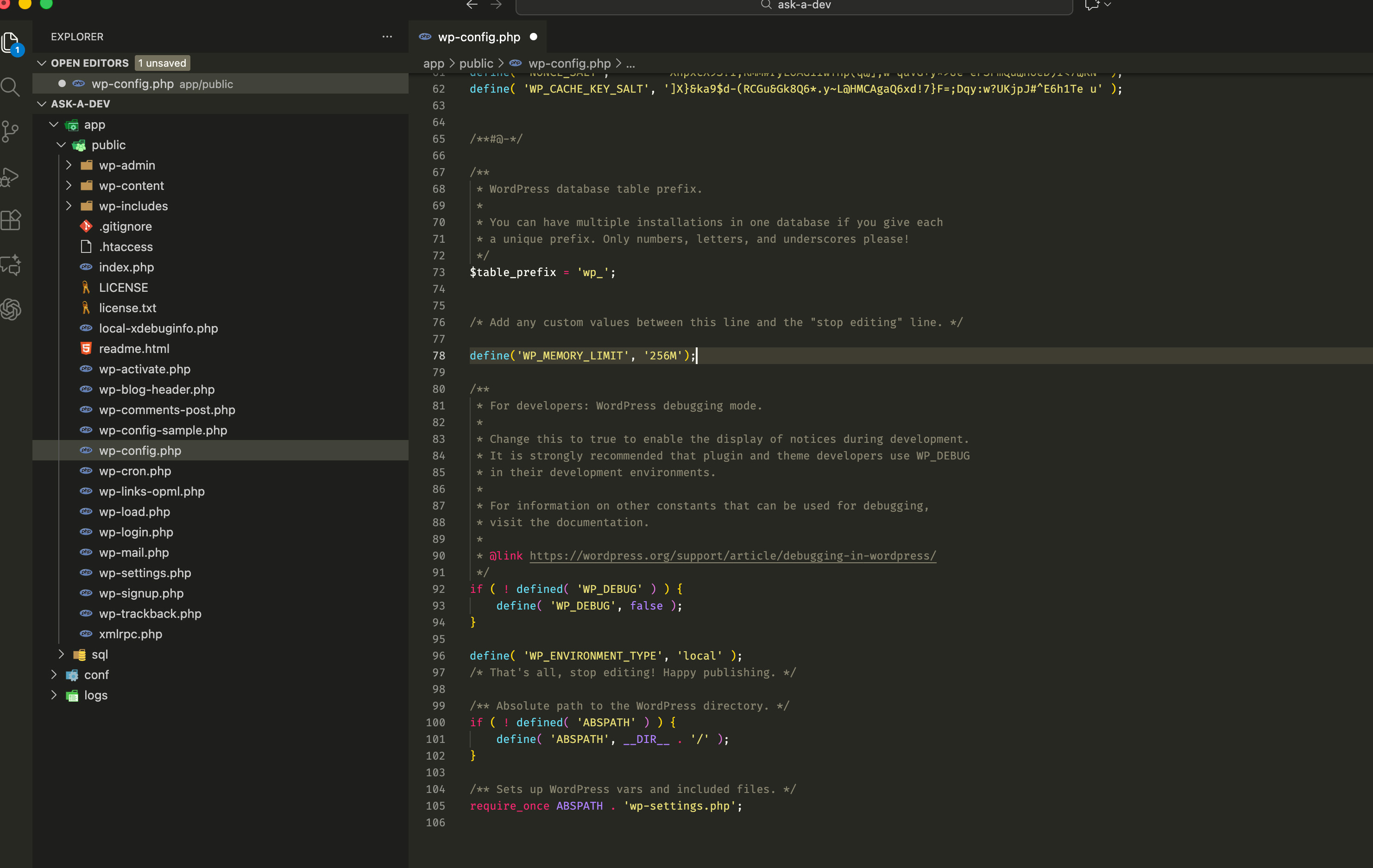
The wp-config.php file is your gateway to increasing memory. It’s located in your WordPress root directory. Using an FTP client or your hosting provider’s file manager, navigate to this file. Always back up your site before making changes to avoid any mishaps. Once you’re in, you’ll see lines of code—don’t worry, you won’t need to change much. The key is to find the right spot to add a simple line that will elevate your site’s performance.
Modifying the Memory Limit Code
In the wp-config.php file, look for the line that says “That’s all, stop editing.” Right before this, add the following: define(‘WP_MEMORY_LIMIT’, ‘256M’);. This line sets your WordPress memory to 256MB. Save the file and refresh your site to see the improvement. For some, 256MB might be enough, but if you still notice slow speeds, consider increasing it further. Always ensure your hosting plan supports the higher memory limit to avoid conflicts.
Benefits of Enhanced Performance
By increasing your WordPress memory limit, you’re setting your site up for success with Elementor and beyond.
Smoother Elementor Design Experience
With a boosted memory limit, your Elementor design sessions will feel more fluid. No more waiting for changes to apply or wrestling with lag. This improvement allows you to focus on creativity and design, rather than technical hiccups. Most people think they need a new hosting plan for better performance, but sometimes a simple memory tweak does the trick.
Improved WordPress Performance 🚀
Beyond Elementor, your entire WordPress site benefits from a higher memory limit. Faster load times and more efficient operations mean a better experience for your visitors. The longer you wait to address memory issues, the more visitors you might lose due to slow performance. By taking action now, you’re investing in your site’s future success. For more details on optimizing performance, check out this Crocoblock article.
In summary, increasing your WordPress memory limit is a crucial step toward optimizing your site for speed and efficiency. It’s a straightforward process that can significantly enhance your Elementor experience and overall WordPress performance.

